
What the dye panel changes
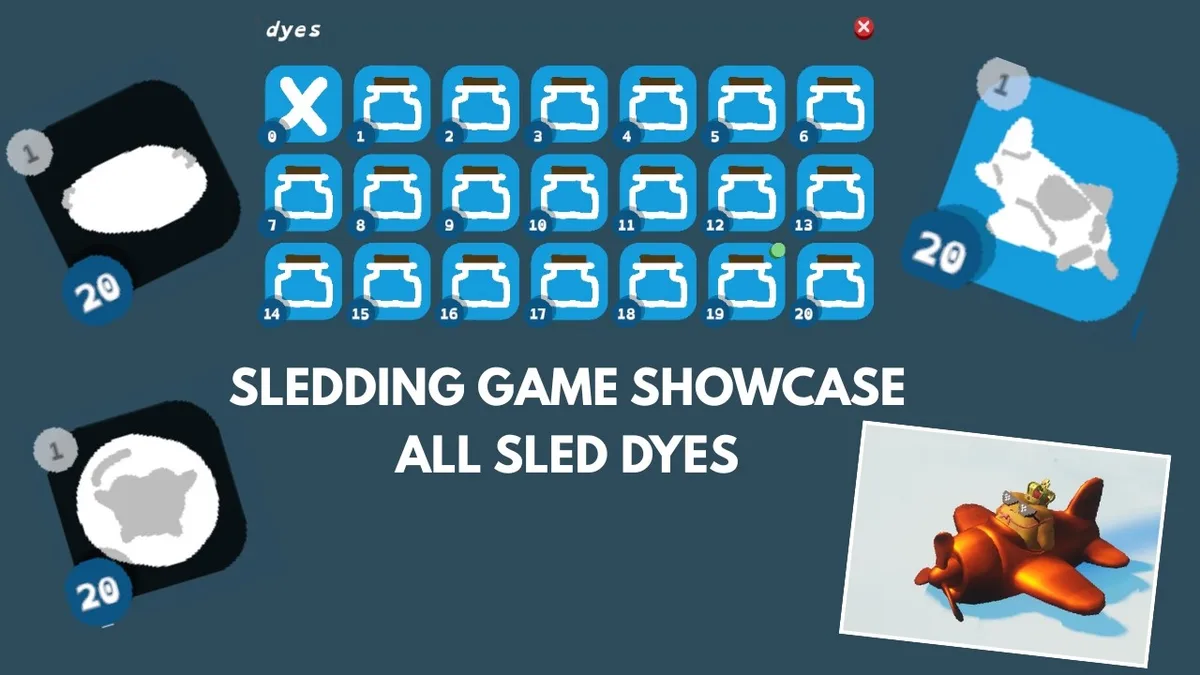
The developer’s June and July 2025 notes introduced sled levelling and dyes earned when a sled gains a level. The May 2026 showcase demonstrates finishes on the Plane, Ball and Disc. This is evidence for sled recolouring, rather than a general dye system for hats, clothing or frog variants.
Choose animal variants through the skin overview. For a different sled shape, use the sled catalogue.
Sources: Official development announcements · ryotSirrom: May 10 dye showcase
Earn levels on the sled you use
The developer describes levelling as per sled. The May player reply identifies the bar at the top left as that sled’s level progress and says tricks fill it. Keep using the sled whose colours you want instead of assuming another sled’s levels automatically unlock the same choices.
The May showcase reaches twenty levels and describes ice at level 19 and gold at level 20. These are the creator’s recorded milestones, not a promise that every later build keeps the same progression table.
The September update fixes incorrect display of the sled level bar. If the bar seems wrong, check the installed update before treating the display as a missing unlock. For ways to practise tricks and earn points, see the money guide.
Sources: Official development announcements · A_Moldy_Stump: sled level and colours · ryotSirrom: May 10 dye showcase · September 21 official update
Check the selected colour and its persistence
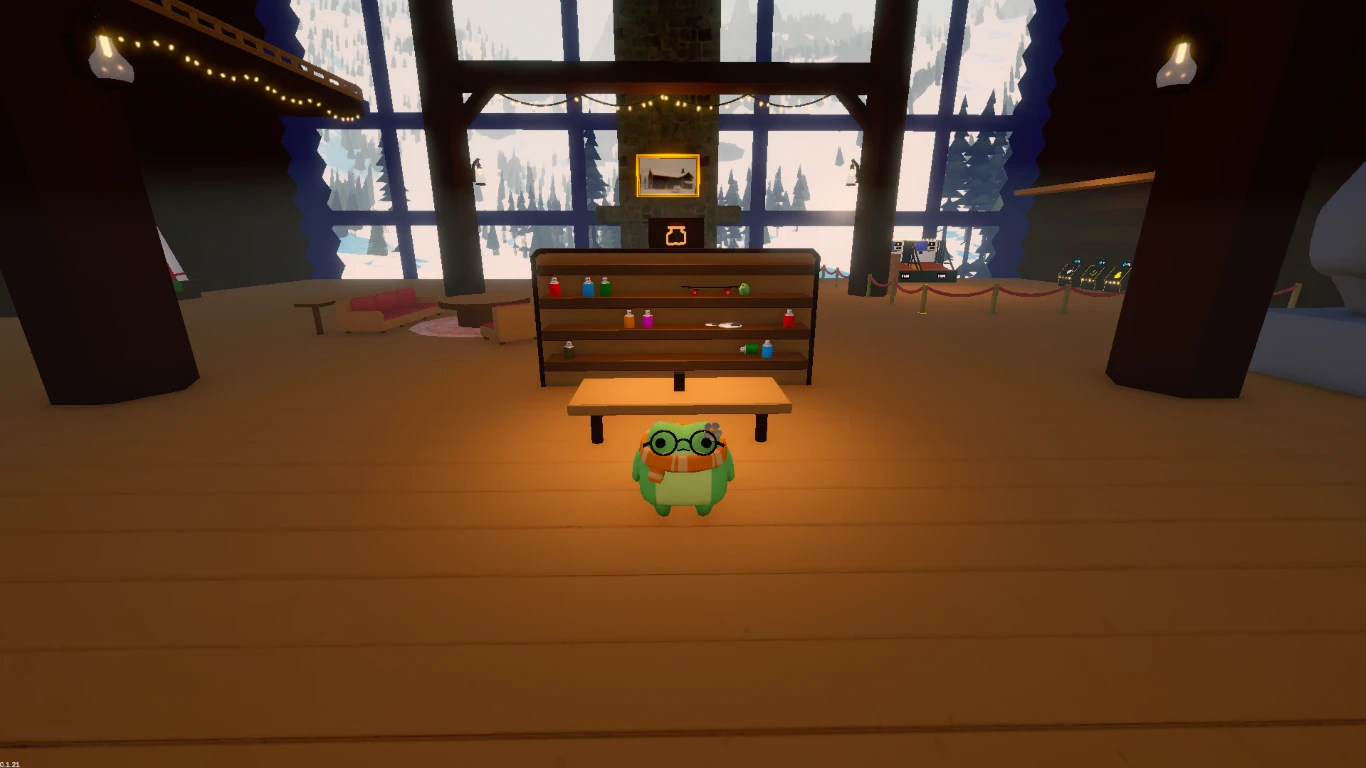
The May cover directly shows a panel labelled Dyes, jar icons numbered 1–20, a 0/X option and a green marker on a colour. FaeBee’s achievement guide separately locates sled editing at the table by a shelf in the middle of the lodge. The inspected materials do not show the click sequence from that table to Dyes; treat the panel picture as the reference when navigating your own editor.
Match the panel before changing anything
Use an unlocked choice only when your editor displays the corresponding Dyes panel. Record the current choice so you can return to it.
Check the actual sled finish
After selecting a colour, inspect the sled preview or visible sled. A level increase alone does not demonstrate which finish is currently selected.
Check again after closing the editor
If the interface offers a confirmation control, use its own prompt. Then close and reopen the editor and inspect the sled. This is a suggested persistence check, not a source-verified Apply shortcut.
Return to your previous choice
Reselect the recorded prior colour to reverse a change. The source panel includes 0/X, but its exact reset behaviour and any save button are not demonstrated in the original cover.
Sources: ryotSirrom: May 10 dye showcase · FaeBee: achievement guide · September 21 official update